Getting startedVideo · 40 sec · 6 steps · November 4, 2026
Invite your team
Invite teammates, choose what they can work on and which Suites they see. They sign in with a code, no password.
01
Open your settings
Press your initial at the top right of any page, then Your settings.

02
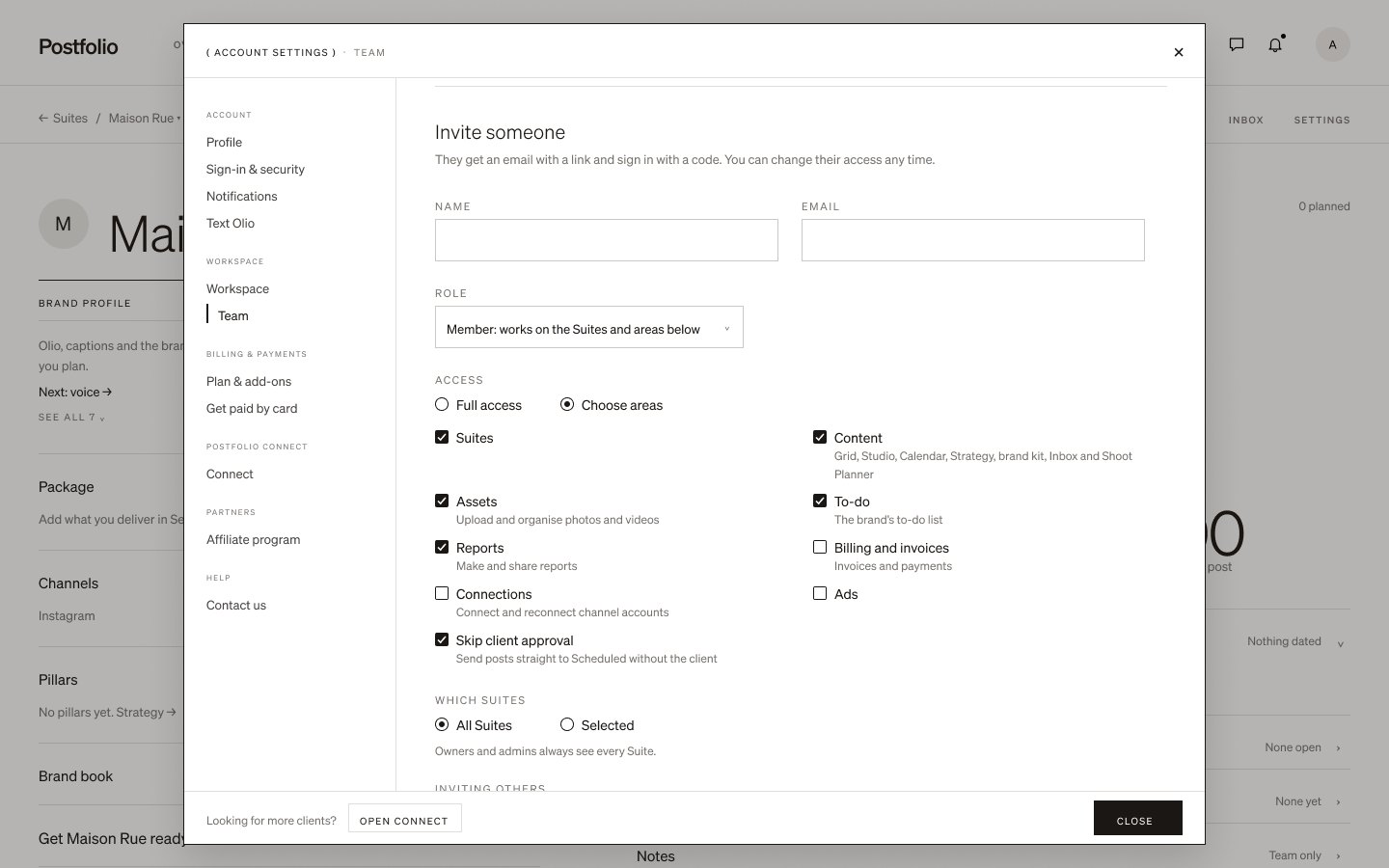
Invite someone
Under Workspace, choose Team, then Invite someone. Add their name and email, and pick their role.
03
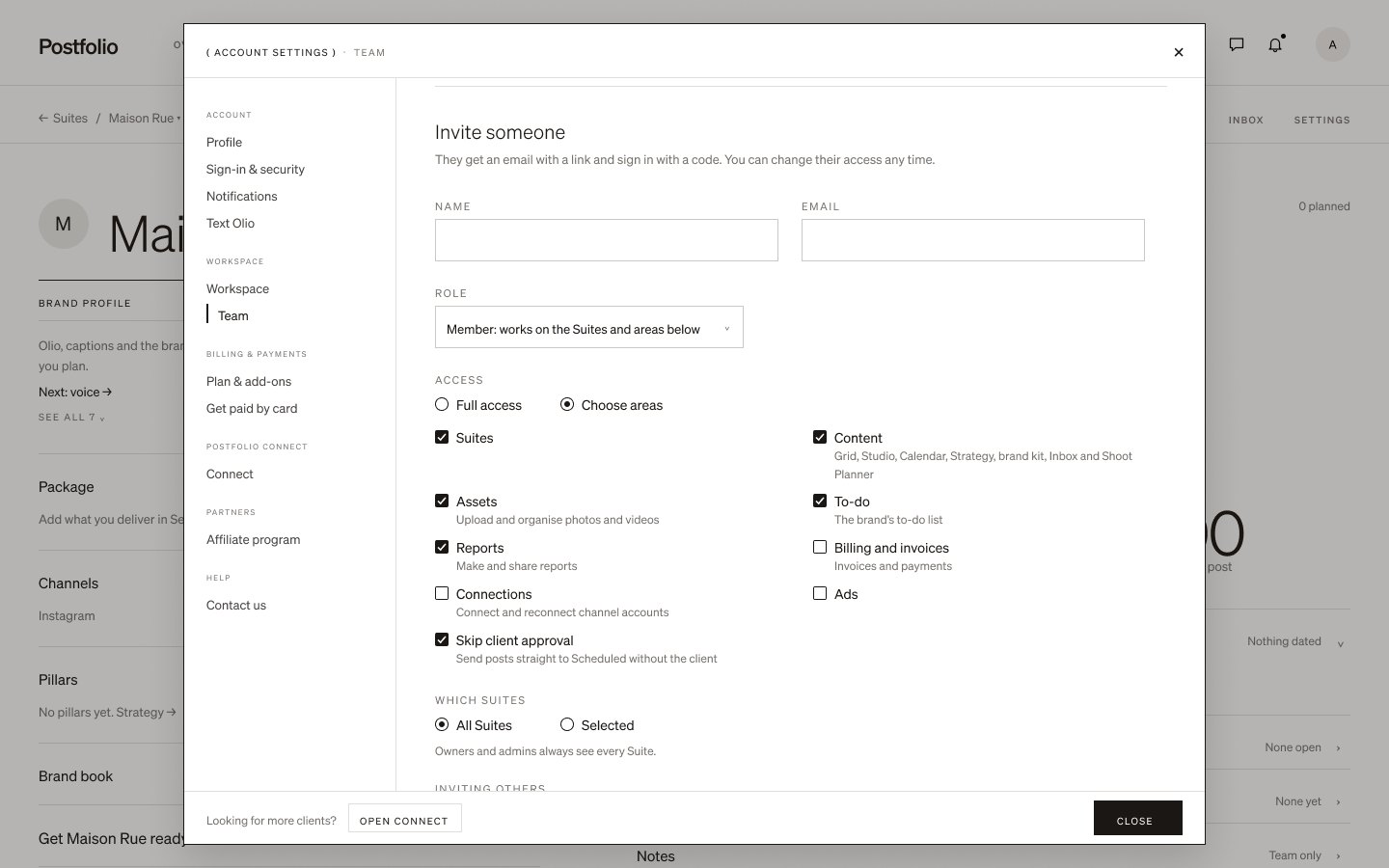
Choose their areas
Give full access, or choose the areas they work in: Suites, Content (Grid, Studio, Calendar, Strategy, brand kit, Inbox and Shoot Planner), Assets, To-do, Reports, Billing and invoices, Connections and Ads. You can also let them skip client approval.
04
Choose their Suites
Let them work on all Suites, or only the ones you pick. Owners and admins always see every Suite. You can change any of this later.
05
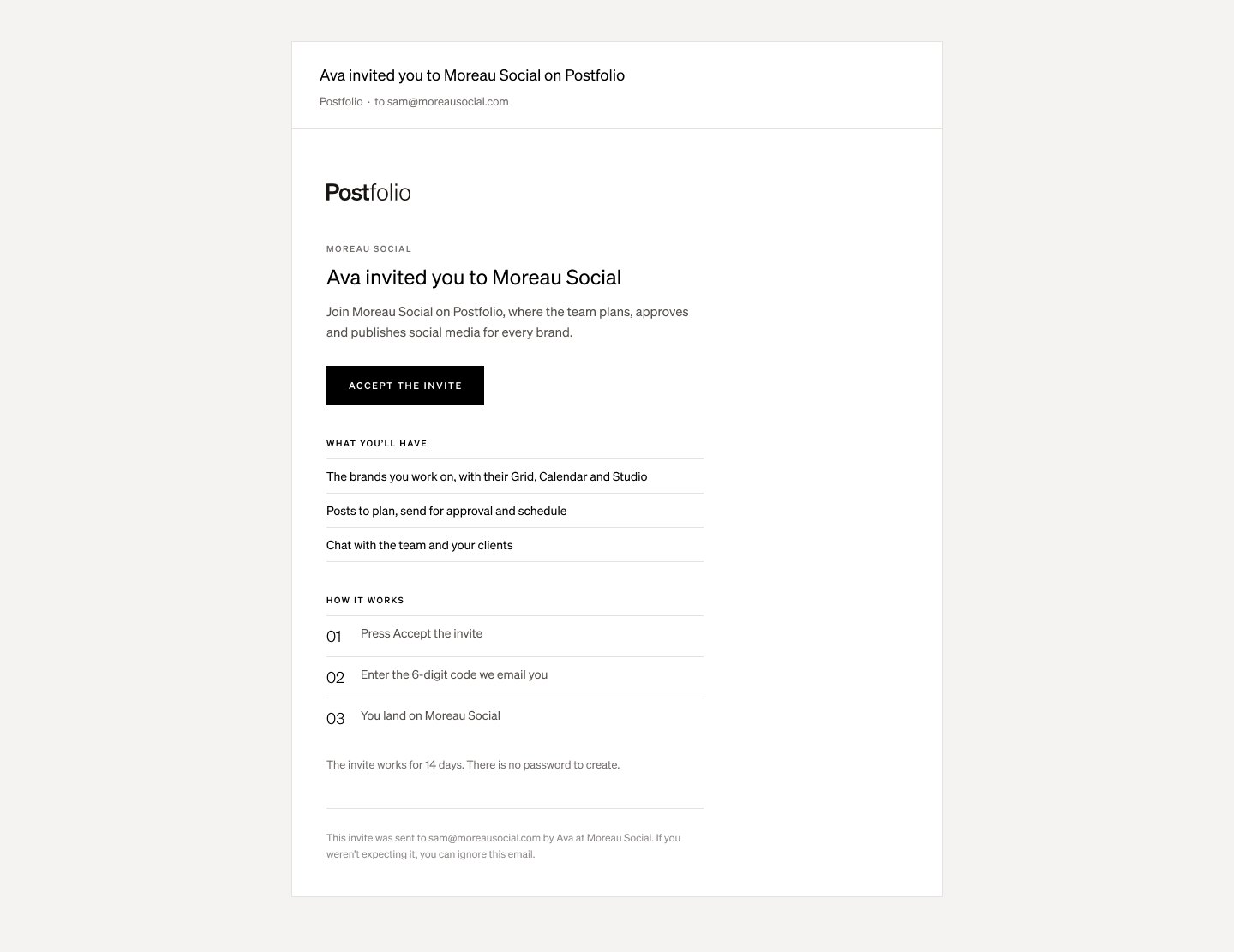
They accept the invite
They get an email from Postfolio with Accept the invite. The invite works for 14 days.
06
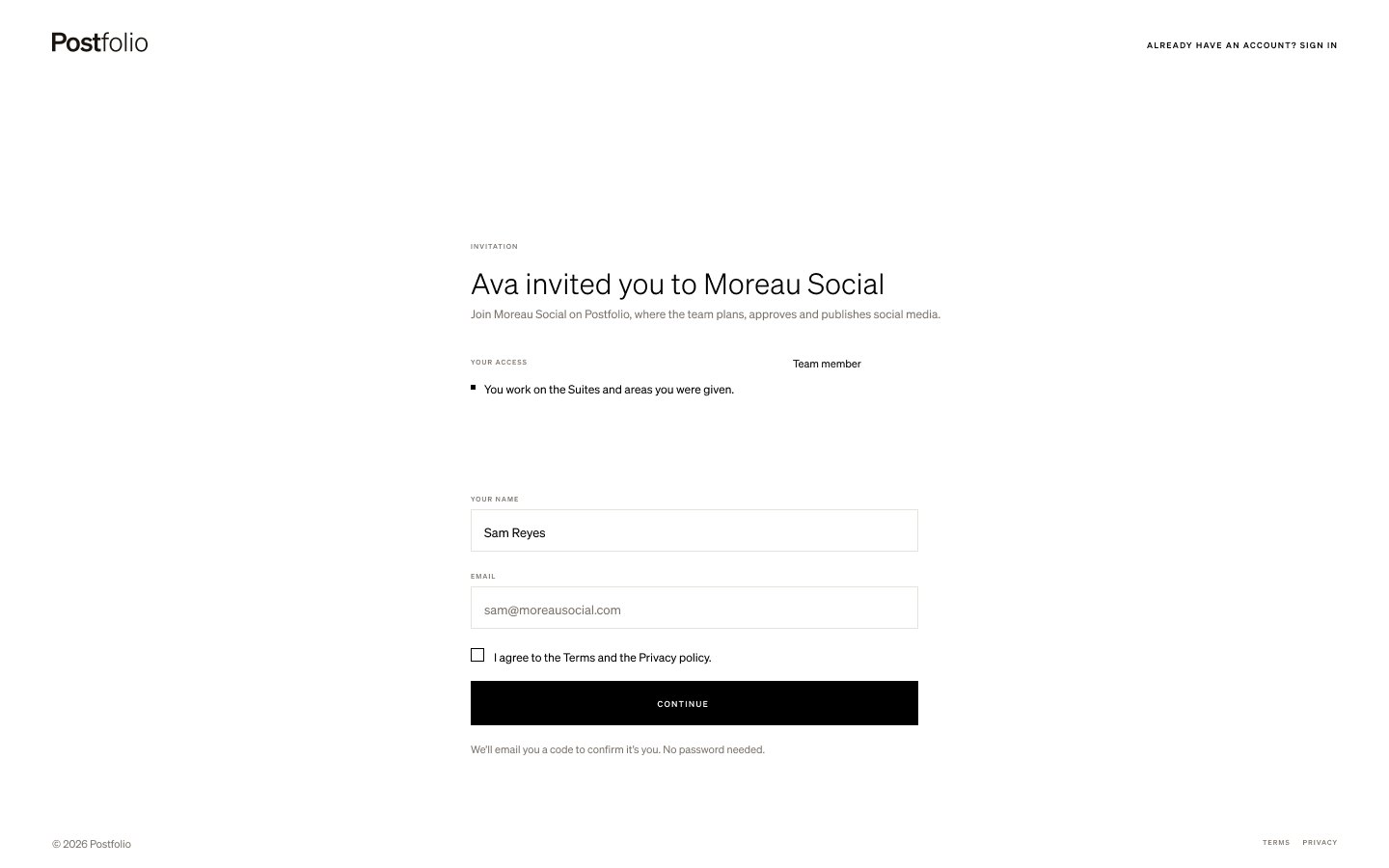
They sign in with a code
They confirm their name, agree to the terms and get a 6-digit code by email. There is no password to create, and they land on your workspace.
Next tutorial
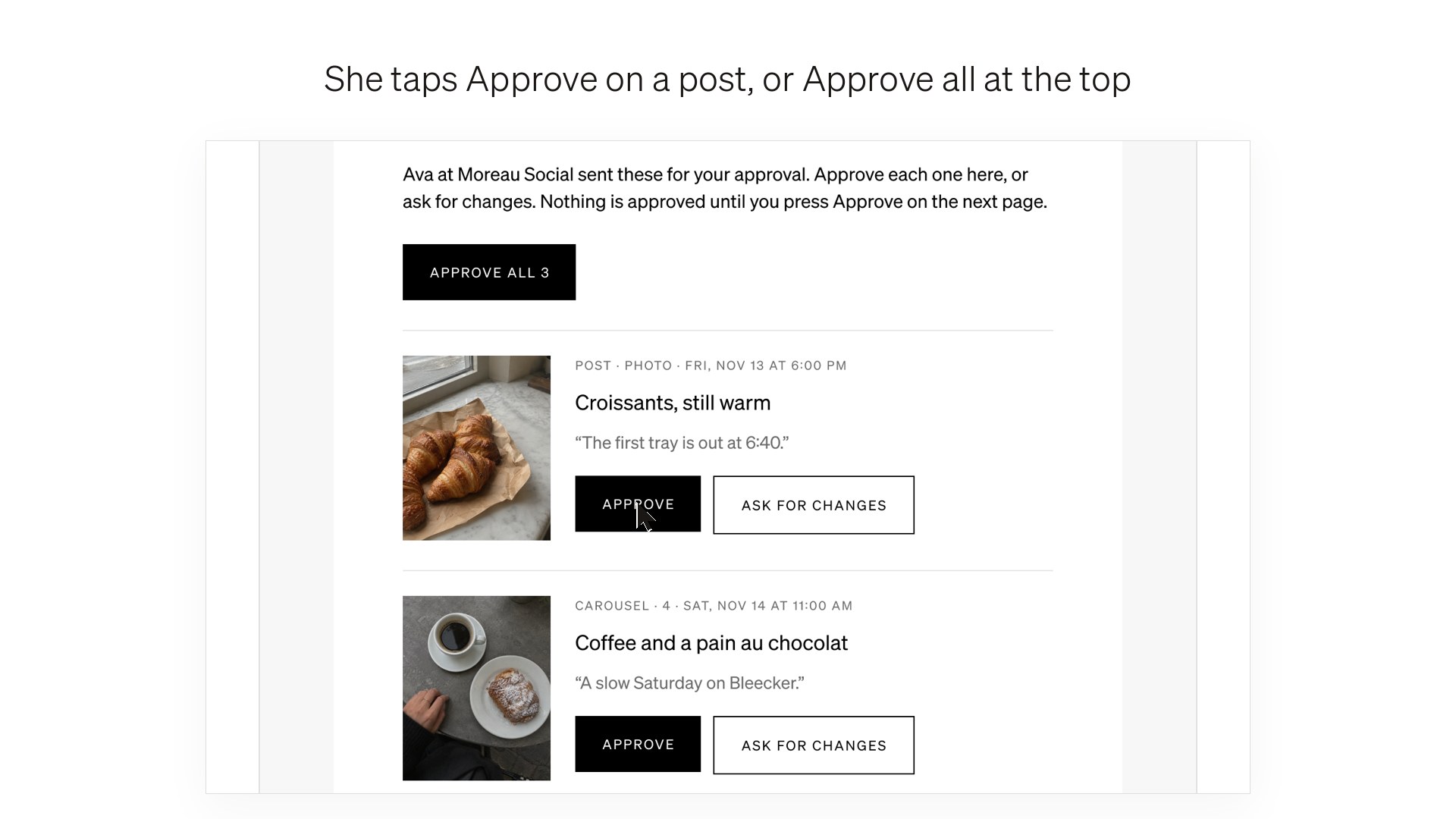 Approve posts from the email →Clients and approvals · 50 sec
Try it in Postfolio
Open Postfolio and follow the steps.
New to Postfolio? Every plan is $10 for the first month.
Still stuck? Write to us or book a walkthrough.